Miyerkules, Nobyembre 30, 2016

Mail Merge of Microsoft Office 

Step 1: Prepare data in Excel for mail merge

The most important step in the mail merge process is to set up and prepare your data. You'll use your Excel spreadsheet as the data source for the recipient list.
Here are some tips to prepare your data for a mail merge. Make sure:
  • Column names in your spreadsheet match the field names you want to insert in your mail merge. For example, to address readers by their first name in your document, you'll need separate columns for first and last names.
  • All data to be merged is present in the first sheet of your spreadsheet.
  • Data entries with percentages, currencies, and postal codes are correctly formatted in the spreadsheet so that Word can properly read their values.
  • The Excel spreadsheet to be used in the mail merge is stored on your local machine.
  • Changes or additions to your spreadsheet are completed before it's connected to your mail merge document in Word.
Notes: You can import information from your Excel spreadsheet by importing information from a comma-separated value (.csv) or a text (.txt) file and use the Text Import Wizard to build a new spreadsheet.
For more information, see Prepare your Excel data source for mail merge in Word.

Step 2: Start the mail merge

  1. In Word, choose File > New > Blank document.
  2. On the Mailings tab, in the Start Mail merge group, choose Start Mail Merge, and then choose the kind of merge you want to run.
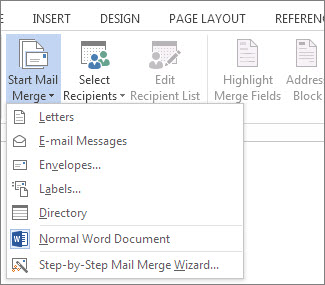
    Screenshot of the Mailings tab in Word, showing the Start Mail Merge command and the list of available options for the type of merge you want to run.
  3. Choose Select Recipients > Use an Existing List.
    Screenshot of the Mailings tab in Word, showing the Select Recipients command with the Use an Existing List option selected.
  4. Browse to your Excel spreadsheet, and then choose Open.
  5. If Word prompts you, choose Sheet1$ > OK.
    Note: Now the Excel spreadsheet is connected to the mail merge document you’re creating in Word.

Edit your mailing list
You can limit who receives your mail.
  1. Choose Edit Recipient List.
    Screenshot of the Mailings tab in Word, showing the Edit Recipient List command as highlighted.
  2. In the Mail Merge Recipients dialog box, clear the check box next to the name of any person who you don't want to receive your mailing.

    Select rows by checking the check box
    Note: You also can sort or filter the list to make it easier to find names and addresses. For more information about sorting and filtering items, see Sort and filter the data for a mail merge.

Step 3: Insert a merge field

You can insert one or more mail merge fields that pull the information from your spreadsheet into your document.
To insert an address block for an envelope, a label, an email message, or a letter
  1. On the Mailings tab, in the Write & Insert Fields group, choose Address Block.
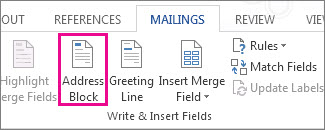
    Insert Address Block merge field
  2. In the Insert Address Block dialog box, choose a format for the recipient's name as it will appear on the envelope.
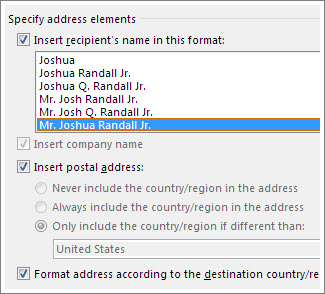
    Address block options
  3. Choose OK.
  4. Choose File > Save.
To insert a greeting line in an email message or a letter
  1. On the Mailings tab, in the Write & Insert Fields group, choose Greeting Line.
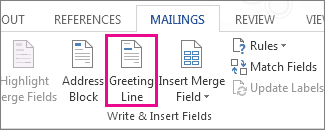
    Screenshot of the Mailings tab in Word, showing the Greeting Line command as highlighted.
  2. In the Insert Greeting Line dialog box, do the following:
    • Under Greeting line format, change the salutation if necessary by choosing the greeting (Dear is the default), the format for the recipient name, and the ending punctuation (a comma is the default).
      and
    • Under Greeting line for invalid recipient names, choose an option in the salutation list.
  3. Choose OK.
  4. Choose File > Save.
To insert data from your spreadsheet in an email message or a letter
  1. On the Mailings tab, in the Write & Insert Fields group, choose Insert Merge Field.
  2. In the Insert Merge Field dialog box, under Fields, choose a field name (column name in your spreadsheet), and then choose Insert.
  3. Repeat step 2 as needed, and choose Close when done.
  4. Choose File > Save.
For more information about adding fields from your spreadsheet to the merge document, see Insert mail merge fields. And if you're interested in learning more about options for setting up email message, see Email merge in Word.

Step 4: Preview and finish the mail merge

After you insert the merge fields you want, preview the results to confirm that the content is okay. and then you're ready to complete the merge process.
  1. On the Mailings tab, choose Preview Results.
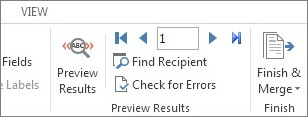
    Screenshot of the Mailings tab in Word, showing the Preview Results group.
  2. Choose the Next Next record button for mail merge preview results or Previous Previous record button for mail merge preview results record button to move through records in your data source and view how the records will appear in the document.
  3. In the Finish group, choose Finish & Merge, and choose Print Documents or Send E-mail Messages.
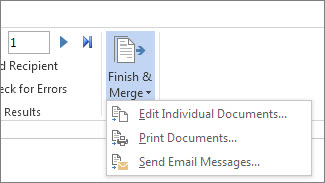
    Screenshot of the Mailings tab in Word, showing the Finish & Merge command and its options.

Step 5: Save your mail merge

When you save the mail merge document, it stays connected to your data source. You can reuse the mail merge document for your next bulk mailing.
  • Open the mail merge document and choose Yes when Word prompts you to keep the connection.

Martes, Nobyembre 22, 2016

15 Tips on how to stay safe online
  1. Select a gender-neutral username, email address, etc. Avoid anything cute, sexual, diminutive, or overtly feminine.
  2. Keep your primary email address private. Use your primary email address ONLY for people you know and trust.
  3. Don't give out information simply because it is requested. Countless web sites ask you to give them your full name, date of birth, address, phone number, email address, etc. when you might just want to search their catalogs or read messages on a discussion forum. Give as little information as possible, and if they insist on information that doesn't seem justified, leave to go elsewhere. Some people give false information at such sites, especially if they don't plan to return in the future. Be especially cautious of "profiles" and "directory listings" for instant messaging programs or web sites.
  4. Block or ignore unwanted users. Whether you are in a chat room or using IM, you should always check out what options/preferences are available to you and take advantage of the "Block all users except those on my buddy list" or adding unwanted usernames to an Ignore list in chat. If anyone bothers you and won't go away, put them on block or ignore!
  5. Don't allow others to draw you into conflict. That may mean that you don't defend yourself from personal attacks. It's safer to ignore them and keep yourself above the fray. When you respond to a harasser in any way, you're letting him know that he has succeeded. No matter how hard it is to do, do not interact with a harasser. When he realizes that he isn't getting a reaction from you, in most cases he'll move on to find an easier target.
  6. Lurk in a new forum to learn local customs. Read mailing list or discussion board postings for a week or more without responding or posting anything yourself. In chat rooms, just sit quietly for 10-30 minutes to see if the discussions that are going on are truly something in which you wish to engage. Don't respond to private messages in that time, either.
  7. If a place becomes stressful, leave it. There are many stressors we cannot avoid easily in our lives, so why put up with those we can avoid? If someone is being asinine in a chat room or on a discussion board, there are countless others that are likely to be more pleasant. If another visitor to a chat room or forum is harassing you and the forum owner/moderator refuses to take decisive action, why would you want to be there? Don't allow yourself to get tied up in battles over territory.
  8. When you change, really change! If you need to change your username or email address to break off contact with a harasser, using a variation on your real name or anything you've used in the past leaves tracks allowing the harasser to find you again fairly easily. If you've always been "Kitty" and you change your handle to "Cat," you haven't really changed. The harasser knows that you have particular hobbies or interests. For instance, perhaps you like to play Scrabble. If he's really obsessed or simply has too much time on his hands, he's likely to poke around in different Scrabble-related fora looking for feline names to see if he can find you again.
  9. Watch what you "say" online. When you do participate online, be careful--only type what you would say to someone's face. If you wouldn't say it to a stranger standing next to you in an elevator, why in the world would you "say" it online?
  10. Know what's in your signature file. Don't put your company name, title, email address, address, phone/fax number, etc. there unless your employer requires that you do so. If you must provide that information, restrict use of that email account to business interactions with co-workers and customers. Do not ever use it to participate in any public forum (mailing list, newsgroup, web-based discussion board, etc.).
  11. Never give your password to anyone. Your ISP will never, ever ask you for your password while you are online or via email. In fact, they shouldn't ever contact you to ask you for your password, period. They can get it from their own records, if they really need it for any reason. If you call them for support, there are a few rather rare instances in which the support person might ask you for your password - but you called them, right? So you know it's really a support person from your ISP that you're talking to. There's no legitimate reason for anyone to ever contact you to ask for your password.
  12. Don't provide your credit card number or other identifying information as proof of age to access or subscribe to a web site run by any person or company with whom you are not personally familiar or that doesn't have an extremely good, widespread reputation. Check consumer advocacy resources before giving out your credit card number to anyone, just to be sure that your trust is justified.
  13. Personally monitor children's internet use, even if you have trained them in what information they can and cannot give out. There is no software in the world that can replace the active involvement of a concerned parent.
  14. Instruct children to never, ever give out personal information - their real name, address, or phone number online without your permission. Consider posing as a stranger to befriend them just to see what you can learn.
  15. Be very cautious about putting any pictures of yourself or your children online anywhere, or allowing anyone else (relatives, schools, dance academies, sports associations) to publish any photos. Some stalkers become obsessed because of an image. A random email address or screen name is simply much less attractive to most obsessive personalities than a photograph.

2 social networking site
  • Facebook
-Facebook also collect a content and other information you provide when you use their services, including when you sign up for an account, create or share, and message or communicate with others. 
  • Twitter
-On Twitter, your name and username are listed publicly, including on your profile page and in search results, and you can use either your real name or a pseudonym. Twitter is primarily designed to help you share information with the world. Most of the information you provide us through Twitter is information you are asking us to make public. You may provide us with profile information to make public on Twitter, such as a short biography, your location, your website, date of birth, or a picture.
