Lunes, Marso 6, 2017

Philippine Events


EDSA People Power Revolution

The Philippines was praised worldwide in 1986, when the so-called bloodless revolution erupted, called EDSA People Power’s Revolution. February 25, 1986 marked a significant national event that has been engraved in the hearts and minds of every Filipino. This part of Philippine history gives us a strong sense of pride especially that other nations had attempted to emulate what we have shown the world of the true power of democracy. The true empowerment of democracy was exhibited in EDSA by its successful efforts to oust a tyrant by a demonstration without tolerance for violence and bloodshed. Prayers and rosaries strengthened by faith were the only weapons that the Filipinos used to recover their freedom from President Ferdinand Marcos’s iron hands. The Epifanio de los Santos Avenue (EDSA) stretches 54 kilometers, where the peaceful demonstration was held on that fateful day. It was a day that gathered all Filipinos in unity with courage and faith to prevail democracy in the country. It was the power of the people, who assembled in EDSA, that restored the democratic Philippines, ending the oppressive Marcos regime. Hence, it came to be known as the EDSA People Power’s Revolution.
EDSA Dos
Ang Rebolusyon sa EDSA ng 2001, o tinatawag na EDSA II (Edsa Dos), ay isang apatang-araw na pangyayaring pampolitika na naganap noong Enero 17-20, 2001, na nagpatalsik sa Pangulo ng Pilipinas na si Joseph Estrada at nagluklok kay Gloria Macapagal-Arroyo, na siyang Bise-Pangulo, bilang maging Pangulo ng bansa. Ayon sa mga tagasuporta, ang EDSA II ay "popular", ngunit binansagan ito ng mga kritiko bilang isang sabwatan sa pagitan ng mga elitistang mga pulitiko at mga negosyante, mga matataas na puno ng militar at ni Jaime Cardinal Sin.
Ang humalili kay Estrada ay si Gloria Macapagal-Arroyo, na nanumpa kay Punong Mahistrado Hilario Davide, Jr, bandang katanghalian ng Enero 20, ilang oras bago ang paglisan ni Estrada sa Palasyo ng MalacaƱang. Ang EDSA ay ang daglat sa ingles ng 'Epifanio de los Santos Avenue (Abenida Epifanio delos Santos), na siyang isang pangunahing daanan na nagkokonekta sa limang lungsod sa Kalakhang Maynila: ang Pasay, Makati, Mandaluyong, Lungsod Quezon at Caloocan. Naganap ang rebolusyon sa distritong pangkalakalan sa Ortigas Center.
Hati ang reaksiyon ng mundo sa pangyayaring ito. Bagama't agad na kinilala ng Estados Unidos ang pagkalehitimo ng pagkapangulo ni Arroyo, binansagan ito ng ibang bansa bilang "pagkatalo ng due process of law", "mob rule" at "de facto coup d'etat."
Ang tangi lamang na nagpalehitimo ng pangyayaring ito ay ang paglalabas ng kapasiyahan ng Korte Suprema sa mga huling saglit na "ang patakaran ng tao ay ang katas-taasang batas." Nauna nang kumalas sa suporta ang Sandatahang Lakas ng Pilipinas mula sa pangulo, na sinasabi ng ilang mga tagasuri bilang hindi ayon sa saligang-batas, at siyang sinang-ayunan ng mga dayuhan na tagasuring pampolitika.
Noong Oktubre 4, 2000, nilantad ni Luis "Chavit" Singson, gobernador ng Ilocos Sur, na nakatanggap si Estrada, ang kaniyang pamilya, at maging ng kaniyang mga kaibigan, ng milyun-milyong halaga ng salapi mula sa operasyon ng ilegal na jueteng. Matagal nang magkaibigan dati si Estrada at si Singson bago ang pangyayaring ito.
Million People March
The so-called Million People March was the first of a series of protests in the Philippines calling for the total abolition of the Pork Barrel fund, triggered by public anger over the Priority Development Assistance Fund scam. Initial calls circulated through social media (mainly on Facebook and Twitter) to convene a protest on August 26, 2013 at Luneta Park in Manila as well as other cities nationwide and overseas. Some media commentators consider this as the first ever massive rally in the Philippines called and organised mostly through social media channels.
Yolanda People Finder
MANILA, Philippines - Are you worried for your relatives and friends living in the areas affected by Typhoon Yolanda (international codename: Haiyan)? Or do you need to assure worried loved ones that you are safe?
There is a growing list of initiatives online that aim to help those looking for information on persons affected by the typhoon. The two most prominent lists are the following:
1) Google Person Finder
An initiative of Google, the list allows relatives and friends to input names of people they are looking for or post information about themselves or people they know for others to find.
If you are looking for somebody, click "I am looking for someone" and input the name and pertinent details of the person you are looking for. If there is a match with anybody in the list, the system will list matching names.
If you have information on a person who might be in the list, click "I have information about someone" and follow instructions in the form that pops-up.
The Philippine Red Cross (PRC) has deployed assessment and rescue teams to the areas affected by recent typhoon Yolanda to evaluate the damage and to support rescue efforts.
Welfare Desks and tracing services are established in the affected areas. The form allows families without news of their loved ones in affected areas to contact the PRC Social Services Department.
The database on the Red Cross list is private.
Sunstar.com.ph has put together a list of survivors based of posts to the Facebook account of Rep. Ferdinand Martin Romualdez. Click this link to access the Sunstar list.
The Official Gazette has posted a list of casualties based on the annex of a report from the National Disaster Risk Reduction and Management Council (NDRRMC) issued on November 10, 6:00 a.m. The page is updated as official reports are issued.


Martes, Enero 31, 2017

Basic Principles of Graphics and Layout

  1. 1. BASIC PRINCIPLES of GRAPHICS and LAYOUT By:
  2. 2. All About Infographic Infographic  Is the short term for information graphic. Infographic refers to:  An image that combines information, storytelling, and perceptions. Advantage  People rely on their sense of sight.
  3. 3. Basic Elements of Layout and Design Lines The first and most basic element of design is that of the line. Basic elements, and it define the characteristics of an infographic.
  4. 4. Color  Powerful and influential elements. Using the right combination of colors can catch the attention of a passerby or even glancing viewers.  It can stand alone, as a background, or be applied to other elements, like lines, shapes, textures or typography.
  5. 5. Shapes  Define by the enclosure created by a combination of multiple lines.  Shapes, geometric or organic, add interest. Shapes are defined by boundaries, such as a lines or color, and they are often used to emphasize a portion of the page.
  6. 6. That’s all Thank You!!!

Martes, Enero 24, 2017

Basic Principles of Graphics and Layout

  1. 1. BASIC PRINCIPLES of GRAPHICS and LAYOUT By:
  2. 2. All About Infographic Infographic  Is the short term for information graphic. Infographic refers to:  An image that combines information, storytelling, and perceptions. Advantage  People rely on their sense of sight.
  3. 3. Basic Elements of Layout and Design Lines The first and most basic element of design is that of the line. Basic elements, and it define the characteristics of an infographic.
  4. 4. Color  Powerful and influential elements. Using the right combination of colors can catch the attention of a passerby or even glancing viewers.  It can stand alone, as a background, or be applied to other elements, like lines, shapes, textures or typography.
  5. 5. Shapes  Define by the enclosure created by a combination of multiple lines.  Shapes, geometric or organic, add interest. Shapes are defined by boundaries, such as a lines or color, and they are often used to emphasize a portion of the page.
The difference of this three is Piktochart is an online tool that allows you to create infographics. An infographic, also known as a data visualization, is a visual display of information through the use of graphics, color, and symbols. PhotoScape is a graphics editing program, developed by MOOII Tech, Korea. The basic concept of PhotoScape is 'easy and fun', allowing users to easily edit photographs taken from their digital cameras or even mobile phones. Photobucket is an American image hosting and video hosting website, web services suite, and online community dedicated to preserving and sharing the entire photo and video lifecycle. ... Photobucket is widely used for both personal and business purposes.


Huwebes, Enero 5, 2017

Enter a Formula

To enter a formula, execute the following steps.
1. Select a cell.
2. To let Excel know that you want to enter a formula, type an equal sign (=).
3. For example, type the formula A1+A2.
Enter a Formula
Tip: instead of typing A1 and A2, simply select cell A1 and cell A2.
4. Change the value of cell A1 to 3.
Recalculation
Excel automatically recalculates the value of cell A3. This is one of Excel's most powerful features!

Edit a Formula

When you select a cell, Excel shows the value or formula of the cell in the formula bar.
Formula Bar
1. To edit a formula, click in the formula bar and change the formula.
Edit a Formula
2. Press Enter.
Edited Formula

Operator Precedence

Excel uses a default order in which calculations occur. If a part of the formula is in parentheses, that part will be calculated first. It then performs multiplication or division calculations. Once this is complete, Excel will add and subtract the remainder of your formula. See the example below.
Operator Precedence
First, Excel performs multiplication (A1 * A2). Next, Excel adds the value of cell A3 to this result.
Another example,
Parentheses
First, Excel calculates the part in parentheses (A2+A3). Next, it multiplies this result by the value of cell A1.

Copy/Paste a Formula

When you copy a formula, Excel automatically adjusts the cell references for each new cell the formula is copied to. To understand this, execute the following steps.
1. Enter the formula shown below into cell A4.
Copy a Formula Example
2a. Select cell A4, right click, and then click Copy (or press CTRL + c)...
Click on Copy
...next, select cell B4, right click, and then click Paste under 'Paste Options:' (or press CTRL + v).
Click on Paste
2b. You can also drag the formula to cell B4. Select cell A4, click on the lower right corner of cell A4 and drag it across to cell B4. This is much easier and gives the exact same result!
Drag a Formula
Result. The formula in cell B4 references the values in column B.
Copy a Formula Result

Insert a Function

Every function has the same structure. For example, SUM(A1:A4). The name of this function is SUM. The part between the brackets (arguments) means we give Excel the range A1:A4 as input. This function adds the values in cells A1, A2, A3 and A4. It's not easy to remember which function and which arguments to use for each task. Fortunately, the Insert Function feature in Excel helps you with this.
To insert a function, execute the following steps.
1. Select a cell.
2. Click the Insert Function button.
Insert a Function
The 'Insert Function' dialog box appears.
3. Search for a function or select a function from a category. For example, choose COUNTIF from the Statistical category.
Insert Function Dialog Box
4. Click OK.
The 'Function Arguments' dialog box appears.
5. Click in the Range box and select the range A1:C2.
6. Click in the Criteria box and type >5.
7. Click OK.
Function Arguments Dialog Box
Result. Excel counts the number of cells that are higher than 5.
COUNTIF Result
Note: instead of using the Insert Function feature, simply type =COUNTIF(A1:C2,">5"). When you arrive at: =COUNTIF( instead of typing A1:C2, simply select the range A1:C2.

Miyerkules, Nobyembre 30, 2016

Mail Merge of Microsoft Office 

Step 1: Prepare data in Excel for mail merge

The most important step in the mail merge process is to set up and prepare your data. You'll use your Excel spreadsheet as the data source for the recipient list.
Here are some tips to prepare your data for a mail merge. Make sure:
  • Column names in your spreadsheet match the field names you want to insert in your mail merge. For example, to address readers by their first name in your document, you'll need separate columns for first and last names.
  • All data to be merged is present in the first sheet of your spreadsheet.
  • Data entries with percentages, currencies, and postal codes are correctly formatted in the spreadsheet so that Word can properly read their values.
  • The Excel spreadsheet to be used in the mail merge is stored on your local machine.
  • Changes or additions to your spreadsheet are completed before it's connected to your mail merge document in Word.
Notes: You can import information from your Excel spreadsheet by importing information from a comma-separated value (.csv) or a text (.txt) file and use the Text Import Wizard to build a new spreadsheet.
For more information, see Prepare your Excel data source for mail merge in Word.

Step 2: Start the mail merge

  1. In Word, choose File > New > Blank document.
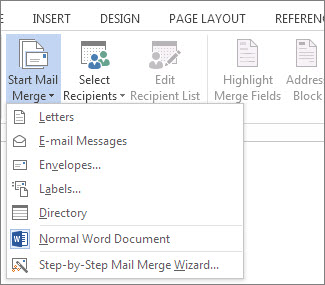
  2. On the Mailings tab, in the Start Mail merge group, choose Start Mail Merge, and then choose the kind of merge you want to run.
    Screenshot of the Mailings tab in Word, showing the Start Mail Merge command and the list of available options for the type of merge you want to run.
  3. Choose Select Recipients > Use an Existing List.
    Screenshot of the Mailings tab in Word, showing the Select Recipients command with the Use an Existing List option selected.
  4. Browse to your Excel spreadsheet, and then choose Open.
  5. If Word prompts you, choose Sheet1$ > OK.
    Note: Now the Excel spreadsheet is connected to the mail merge document you’re creating in Word.

Edit your mailing list
You can limit who receives your mail.
  1. Choose Edit Recipient List.
    Screenshot of the Mailings tab in Word, showing the Edit Recipient List command as highlighted.
  2. In the Mail Merge Recipients dialog box, clear the check box next to the name of any person who you don't want to receive your mailing.
    Select rows by checking the check box
    Note: You also can sort or filter the list to make it easier to find names and addresses. For more information about sorting and filtering items, see Sort and filter the data for a mail merge.

Step 3: Insert a merge field

You can insert one or more mail merge fields that pull the information from your spreadsheet into your document.
To insert an address block for an envelope, a label, an email message, or a letter
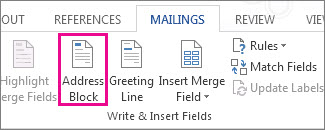
  1. On the Mailings tab, in the Write & Insert Fields group, choose Address Block.
    Insert Address Block merge field
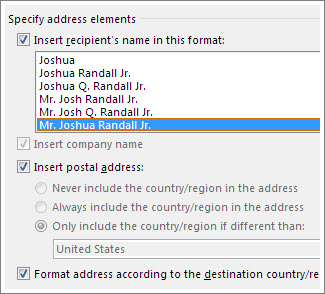
  2. In the Insert Address Block dialog box, choose a format for the recipient's name as it will appear on the envelope.
    Address block options
  3. Choose OK.
  4. Choose File > Save.
To insert a greeting line in an email message or a letter
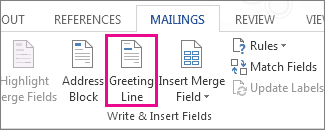
  1. On the Mailings tab, in the Write & Insert Fields group, choose Greeting Line.
    Screenshot of the Mailings tab in Word, showing the Greeting Line command as highlighted.
  2. In the Insert Greeting Line dialog box, do the following:
    • Under Greeting line format, change the salutation if necessary by choosing the greeting (Dear is the default), the format for the recipient name, and the ending punctuation (a comma is the default).
      and
    • Under Greeting line for invalid recipient names, choose an option in the salutation list.
  3. Choose OK.
  4. Choose File > Save.
To insert data from your spreadsheet in an email message or a letter
  1. On the Mailings tab, in the Write & Insert Fields group, choose Insert Merge Field.
  2. In the Insert Merge Field dialog box, under Fields, choose a field name (column name in your spreadsheet), and then choose Insert.
  3. Repeat step 2 as needed, and choose Close when done.
  4. Choose File > Save.
For more information about adding fields from your spreadsheet to the merge document, see Insert mail merge fields. And if you're interested in learning more about options for setting up email message, see Email merge in Word.

Step 4: Preview and finish the mail merge

After you insert the merge fields you want, preview the results to confirm that the content is okay. and then you're ready to complete the merge process.
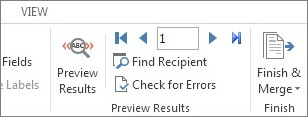
  1. On the Mailings tab, choose Preview Results.
    Screenshot of the Mailings tab in Word, showing the Preview Results group.
  2. Choose the Next Next record button for mail merge preview results or Previous Previous record button for mail merge preview results record button to move through records in your data source and view how the records will appear in the document.
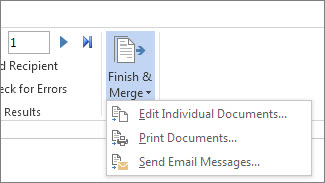
  3. In the Finish group, choose Finish & Merge, and choose Print Documents or Send E-mail Messages.
    Screenshot of the Mailings tab in Word, showing the Finish & Merge command and its options.

Step 5: Save your mail merge

When you save the mail merge document, it stays connected to your data source. You can reuse the mail merge document for your next bulk mailing.
  • Open the mail merge document and choose Yes when Word prompts you to keep the connection.